

This article will guide you on how to reset the password if you have forgotten it.
Supported models:
- LN1600 series (LN1603, LN1602, LN1601)
- SPNM60
- SPNM62
Before you begin:
- You can use a computer or a mobile device.
- Parent router - This refers to the Linksys router connected to your modem or internet source.
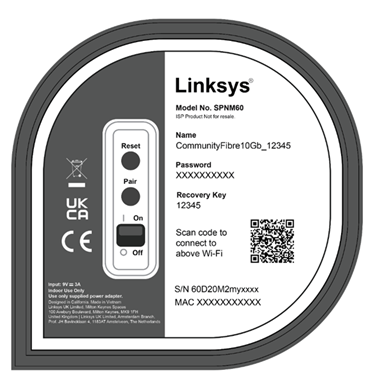
- Write down the five-digit key located on the bottom of the parent router.
1. Connect your mobile device or computer to the WiFi name of your Linksys router.
2. Open a desktop browser and enter www.myrouter.info or myrouter.info. You can also use the default IP address https://192.168.1.1.
If you get the following browser message, follow these instructions to learn how to bypass this message.

3. Click on Forgot password. However, if you created a hint when you customized your password, click on Show Hint.

4. Enter the five-digit key located on the bottom of the parent router when prompted and click Continue.

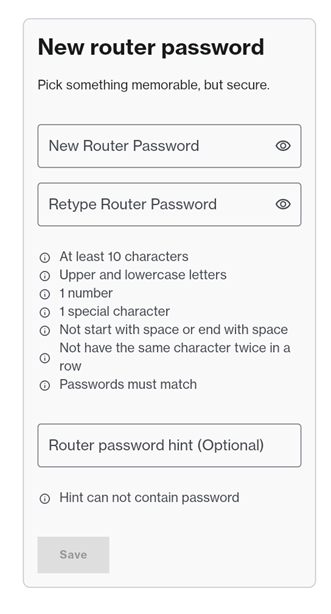
5. Create a new password when prompted. You may add an optional password hint, then click Save.
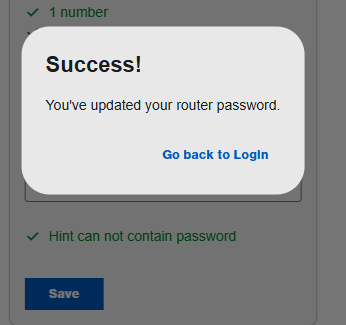
6. Click Go back to Login and enter your new password.