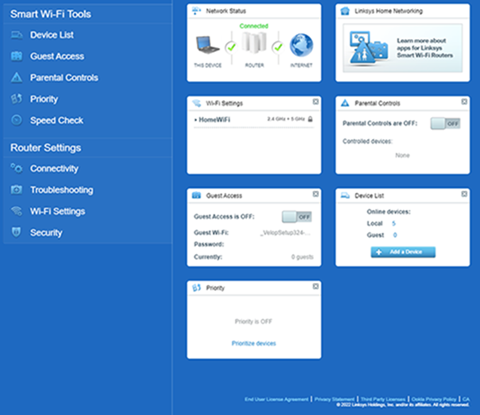


This article will guide you on how to log in to the Linksys Mesh router using the Linksys Smart Wi-Fi web interface. For routers with the LinksysNOW web interface, these are the instructions.
Supported models: WHW0x series, MXxxx series, MRxxx series
Before you begin:
A desktop computer is required to access the router’s web interface.
Images vary by model.
1. Connect a computer to the Linksys WiFi network or connect it to the router via an Ethernet port.
2. Open a web browser, type “myrouter.local” in the Address bar, and hit [ENTER]. You can also enter the router's default IP address, “https://192.168.1.1”.
3. The following will depend on which blocking pages you may be prompted with. Follow the instructions to bypass these screens:
Blocking mobile page: If you get this page, just click on the mobile image to bypass it.
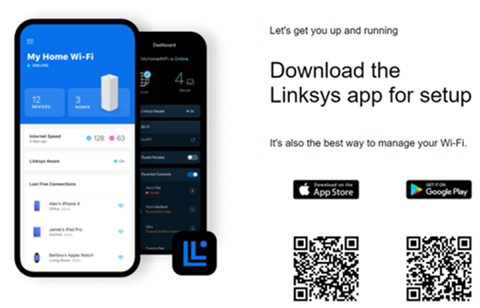
Linksys browser message: Click Continue at the bottom.
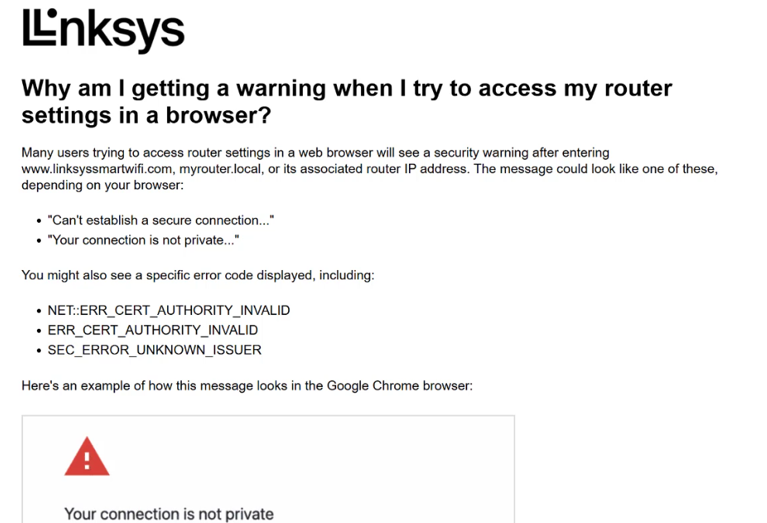
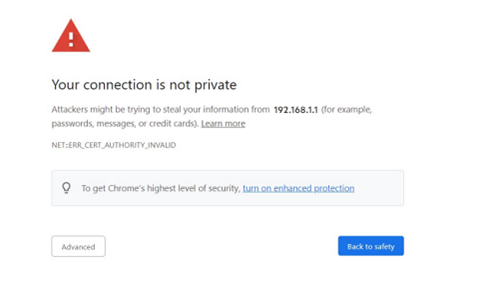
Native browser security message: Click to proceed to connect to the URL. For details, click here.
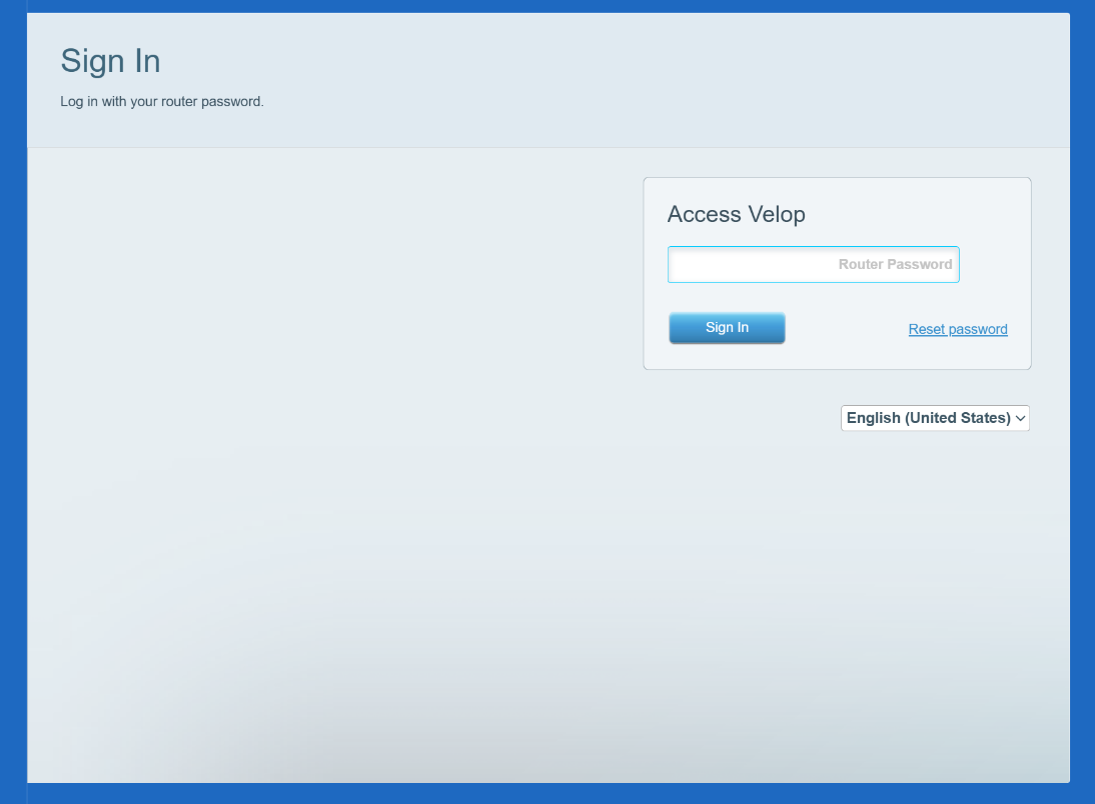
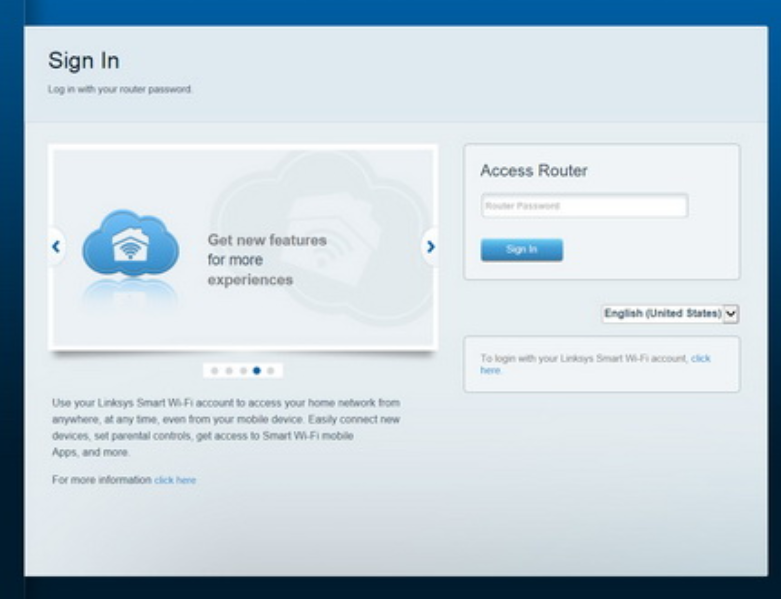
4. Depending on the model or firmware version, the login page may vary. At the local login page, enter your router password in the Access Velop/Router field and then click Sign In. Make sure to use the local access login page.
If you have modified the password but have forgotten it, or this is your first time logging in, click the Reset Password link to recover or create a new password. You will need the Recovery Key located at the bottom of the router that is connected to your modem.
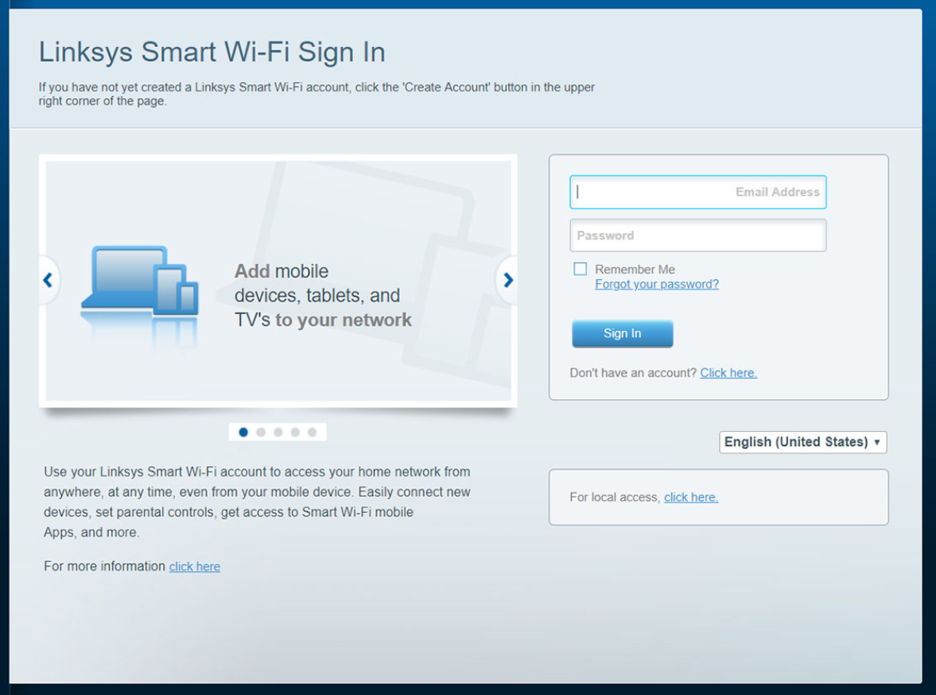
If you get the following screen, click on “For local access”.
5. You will be redirected to the router’s dashboard. Learn more about the router's dashboard settings.